
Easy Smartphone Settings for More Comfortable Everyday Use
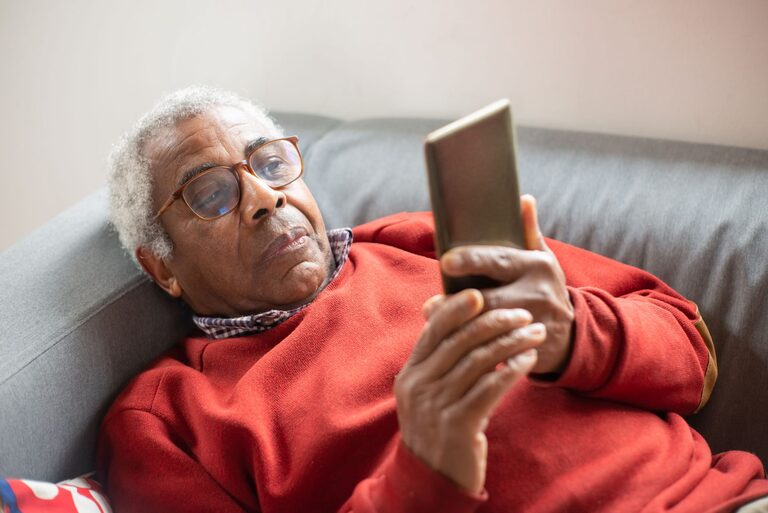
Smartphones are designed to do many things, but their default settings do not work perfectly for everyone. A few small adjustments can make reading, tapping, listening, and finding information much easier.
The names of settings can vary between iPhones and Android phones, and between different brands. If you cannot find an option, open the Settings app and use its search box. You can also ask a family member, friend, or mobile phone store employee for help.
Here are some practical changes to try.
Make the screen easier to read
Increase text size
Small text can make messages, menus, and websites tiring to read. Both iPhone and Android phones let you increase the size of text across many apps.
Look for an option such as:
– Text Size
– Font Size
– Display Size
– Accessibility
– Screen Zoom
Increase the size one step at a time. A very large setting may make some buttons or words disappear off the edge of the screen, so choose the largest size that still feels comfortable.
Some phones also offer a bold text setting. Bold lettering can make names, labels, and instructions stand out more clearly.
Increase screen brightness
A brighter screen can be easier to see in a well-lit room or outdoors. Open the quick settings panel by swiping down from the top of the screen, then adjust the brightness slider.
Many phones include automatic brightness. This feature changes the screen brightness based on the surrounding light. It can be useful when moving between indoor and outdoor areas, but you can turn it off if you prefer to control the brightness yourself.
At night, try a setting called Night Shift, Night Light, or Eye Comfort. These features adjust the screen color to make it warmer in the evening.
Improve contrast
If text and buttons blend into the background, look for contrast settings. Depending on the phone, you may find options such as:
– Increase Contrast
– High Contrast Text
– Reduce Transparency
– Bold Text
– Color Contrast
You can also try Dark Mode or Light Mode. Dark Mode uses a darker background, while Light Mode uses a lighter background. Test both during the day and evening to see which feels clearer.
Make touch controls more comfortable
Slow down touch and hold actions
Some phones respond to a light touch and others require a firmer press. If the phone opens items too quickly or reacts when you touch the screen by accident, look for Touch settings.
Possible options include:
– Touch and Hold Delay
– Touch Accommodations
– Ignore Repeated Touches
– Tap Duration
A longer touch-and-hold delay gives you more time to place your finger without opening an option by mistake. If your phone sometimes reacts to repeated taps, an option to ignore repeated touches may help.
Use a larger keyboard
A larger keyboard can make typing names, messages, and web searches easier. Some keyboard apps allow you to change the keyboard height in their settings.
Open a text message or email, then look for a gear icon on the keyboard. You may see options for:
– Keyboard height
– Key borders
– Text size
– Sound on keypress
– Vibration on keypress
Key borders can help you see where one letter ends and another begins. Gentle sound or vibration may also confirm that a key was pressed, although you can turn these features off if they are distracting.
Turn on one handed or easy reach features
Large phones can be difficult to use with one hand. Many models include a feature that moves the top part of the screen lower so it is easier to reach.
Look for Reachability, One Handed Mode, or One Handed Keyboard. These options can be useful when carrying a bag, holding a handrail, or using the phone while standing.
Make calls and messages easier to manage
Increase ringtone and notification volume
If calls or messages are easy to miss, adjust the ringtone and notification volume separately from music or video volume. Open Settings, then look for Sound, Sounds and Haptics, or Volume.
Choose a ringtone that is clear and easy to recognize. You can also turn on vibration for incoming calls if that is helpful.
Some phones allow different sounds for calls, text messages, email, and calendar reminders. Using distinct sounds can help you know what happened without checking the screen.
Reduce unnecessary notifications
Too many alerts can make a phone feel busy. Open the Notifications section in Settings and review the list of apps.
For each app, decide whether you want:
– Sound alerts
– Vibration
– Lock screen alerts
– Pop-up banners
– A small icon or badge
Keep alerts for the apps you use most and turn off alerts that are not useful. You can usually change these settings later.
A scheduled Do Not Disturb feature can also reduce interruptions during dinner, sleep, reading, or other quiet times. Important contacts can often be allowed through, depending on the phone.
Make contacts easier to find
Save frequently called people as contacts with clear names. Add a photo if that helps you recognize them quickly.
You can place favorite contacts on the phone’s home screen or in a favorites list. Some phones also offer a Contacts widget, which provides quick access without opening the full Contacts app.
Use voice tools for hands free help
Try voice typing
Voice typing can be easier than using a small keyboard. Tap the microphone icon on the keyboard and speak clearly. The phone will turn your words into text.
Pause briefly between sentences and say punctuation when needed, such as “comma” or “period.” Review the message before sending it, because voice typing can misunderstand names or similar-sounding words.
Use a voice assistant
A voice assistant can set reminders, check the weather, start a timer, play music, or call a contact. The assistant’s name and abilities vary by phone.
For better results, use short, direct requests. For example:
– “Set a timer for ten minutes.”
– “Call Sam.”
– “Remind me tomorrow at nine to bring the library books.”
– “Open the camera.”
You can change the assistant’s language, voice, and response style in its settings.
Simplify the home screen
A crowded home screen can make apps difficult to find. Move the apps you use most often to the first screen, such as Phone, Messages, Camera, Maps, Calendar, and Weather.
You can group less frequently used apps into folders. Use simple folder names such as Travel, Photos, or Shopping.
Many phones also include widgets that show useful information at a glance. A calendar, weather, clock, or battery widget may save you from opening several apps.
If app icons are too small, increase the display size or use a larger home screen layout if your phone provides one.
Turn on helpful safety and convenience features
Review features such as Find My iPhone or Find My Device. These tools can help you locate a misplaced phone, play a sound, or display contact information on the lock screen.
It is also useful to set up a screen lock that you can remember and use comfortably. Options may include a passcode, fingerprint, or face recognition, depending on the phone.
Finally, check that your phone installs important software updates automatically or reminds you when updates are ready. Keeping the phone updated can improve its features and reliability.
Make changes one at a time
You do not need to change everything in one sitting. Start with the setting that bothers you most, such as small text, a quiet ringtone, or a crowded home screen. Use the phone for a day or two, then decide whether another adjustment is needed.
The best smartphone setup is the one that feels natural to you. Small changes can make everyday tasks more comfortable without requiring a new phone or complicated equipment.