
A Practical Guide to Using Voice Assistants at Home
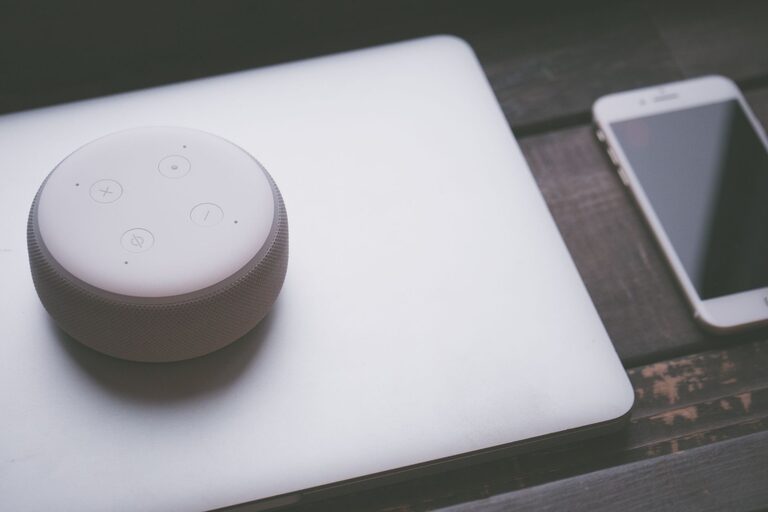
Voice assistants can make everyday tasks easier with simple spoken commands. Whether you use a smart speaker, phone, tablet, television, or another connected device, a voice assistant can help manage schedules, answer questions, play media, control compatible products, and more.
The best experience comes from setting up the assistant carefully and learning a few practical habits. This guide explains how to get started, choose useful features, improve accuracy, and use voice control responsibly at home.
What Is a Voice Assistant?
A voice assistant is software that responds to spoken requests. Common examples can:
– Set alarms, timers, and reminders
– Answer general questions
– Read news, weather, or traffic updates
– Play music, podcasts, and audiobooks
– Add items to a shopping list
– Create calendar events
– Control compatible lights, plugs, thermostats, and other devices
– Make calls or send messages on supported devices
– Provide step-by-step information, such as recipes
Most assistants use a wake word or button to begin listening. After activation, you speak a command, and the assistant processes the request and provides a response or performs an action.
Choosing the Right Device
You do not always need to buy a dedicated smart speaker. Many smartphones, tablets, computers, and televisions already include voice assistant features. Start by considering how and where you want to use voice control.
Smart speakers
Smart speakers are useful in shared areas such as kitchens, living rooms, and bedrooms. They are designed to hear commands from across a room and can often connect to other smart home products.
Smartphones and tablets
A phone or tablet is a good choice if you want voice assistance while moving around the home or away from it. These devices may also provide more personalized features, such as contacts, calendars, maps, and messages.
Headphones and cars
Some headphones and vehicles support voice commands through a connected phone. This can be useful for playing audio, making calls, or getting directions without handling the device.
When selecting a device, check compatibility with your existing products, the quality of its microphones and speakers, and the settings available for privacy and personalization.
Set Up Your Voice Assistant
A careful setup can prevent many common problems later.
1. Install the required app
Most voice assistant devices use a companion app. Download the official app for your device, sign in, and follow the setup instructions. Use a strong, unique password for your account, and enable available account security features.
2. Connect to your home network
The device will usually need access to your home Wi-Fi network. Place it where the signal is reliable. If the device frequently disconnects, move it closer to the router or check whether other devices are using too much network capacity.
3. Choose a clear location
Place the device on a stable surface with its microphones uncovered. Avoid putting it directly beside a television, fan, or other source of constant noise. In the kitchen, keep it away from splashes, steam, heat, and food preparation areas unless it is specifically designed for that environment.
4. Review basic settings
During setup, check the language, time zone, preferred measurement units, music services, calendar access, and notification settings. These choices affect how the assistant responds to everyday requests.
5. Update the device
Install software and firmware updates when they become available. Updates may improve performance, add features, fix errors, and strengthen security.
Learn the Basics of Voice Commands
Voice assistants work best when requests are clear and specific. Begin with short commands, then add details as needed.
Examples include:
– “Set a timer for 15 minutes.”
– “Remind me to water the plants at 6 p.m.”
– “Add bread and apples to my shopping list.”
– “What is the weather tomorrow?”
– “Play my morning playlist.”
– “Turn off the living room light.”
– “Create a calendar event for Saturday at 10 a.m.”
If the assistant misunderstands you, try speaking more slowly and using different wording. You can also check the device’s activity history or help section to learn which phrases it recognizes.
Organize Features for Daily Life
A voice assistant becomes more useful when it supports routines you already follow.
In the morning
Use alarms, weather updates, calendar reminders, and news summaries to create a simple start-of-day routine. Some assistants can perform several actions with one phrase, such as reading the weather and calendar at the same time.
In the kitchen
Timers are among the most practical features. You can set multiple timers with descriptive names, such as “pasta timer” or “laundry timer.” Voice assistants can also help convert measurements, read recipes, and maintain a shopping list while your hands are busy.
Around the home
Compatible smart plugs, lights, and other products can respond to voice commands. Use clear names for each device, such as “desk lamp” or “hallway light.” Grouping devices by room can make commands shorter and easier to remember.
At night
Set reminders, alarms, or a bedtime routine. You might also use voice commands to turn off selected lights, play quiet audio, or check that a door sensor is closed if your home system supports those features.
Improve Recognition and Reliability
Even good voice assistants can make mistakes. These tips can improve results:
– Place the device away from loud background noise.
– Speak at a normal pace and volume.
– Use the exact device names shown in the companion app.
– Avoid giving several unrelated requests at once.
– Rename devices that have similar names.
– Check that the assistant is using the correct language and location.
– Restart the device if it becomes slow or unresponsive.
– Review permissions when adding a new service.
If several people use the same device, consider voice profiles if the assistant supports them. Profiles may help distinguish users and provide more appropriate calendars, music preferences, or reminders.
Use Privacy and Security Settings
Voice assistants are convenient, but they may process recordings, account information, and connected-device data. Take time to understand the available controls.
Review these settings regularly:
– Microphone controls or mute buttons
– Voice recording history
– Automatic deletion options
– Permissions for contacts, calendars, location, and purchases
– Connected services and smart home access
– Voice purchasing and confirmation requirements
– Guest access and personalized results
A physical microphone mute button can be useful when you do not want the device listening for its wake word. Keep account software updated, use a secure home network, and avoid sharing sensitive information aloud when other people are nearby.
For shared homes, explain basic privacy settings to everyone who uses the device. Visitors and children may not know which commands can trigger purchases, calls, or changes to connected devices.
Create Simple Routines
Routines combine several actions under one phrase. For example, a “leaving home” routine might turn off selected lights, adjust a compatible thermostat, and provide a reminder to take your keys.
Keep routines simple at first. Choose actions that are easy to verify, and use distinct names so they are not triggered accidentally. Review routines occasionally, especially after changing devices or services.
Troubleshoot Common Problems
If the assistant does not respond, check whether the microphone is muted and whether the device has power. If it responds incorrectly, review the wording of your command and confirm the device name.
For connection problems:
- Check the Wi-Fi connection.
- Restart the voice assistant.
- Restart the router if needed.
- Install pending updates.
- Move the device closer to the router.
- Remove and reconnect the device through its official app.
If a connected light or appliance does not respond, confirm that it is powered on and still linked to the correct account. Compatibility can change after a product update, so check the manufacturer’s support information when necessary.
Make Voice Assistance Work for You
Voice assistants are most helpful when they solve small, repeated problems. Start with a few features, such as timers, reminders, music, and weather updates. Once those feel natural, add compatible home devices or routines one at a time.
The goal is not to use every available feature. It is to create a setup that saves time, supports your daily habits, and remains easy for everyone in the home to understand. With thoughtful placement, clear commands, regular updates, and careful privacy settings, a voice assistant can become a practical part of your home technology setup.
Related Post

How to Make Your Home Technology Easier to Use and Maintain
Simplify your home technology with better organization, clear routines, reliable updates, and easy troubleshooting habits. [...]